
Temp mail for LinkedIn shields your primary email from spam, phishing, and unwanted connections. This guide shows you how to create disposable inboxes in minutes for safer networking. Keep your real address private while exploring opportunities—no tech skills needed.
Key Takeaways
- Privacy protection: Temp mail hides your real email from recruiters, spammers, and suspicious accounts on LinkedIn.
- Spam defense: disposable inboxes catch promotional emails and connection requests you don’t want cluttering your main account.
- Phishing prevention: Isolate risky links or attachments from unknown senders to avoid compromising your primary email.
- Easy setup: Most temp mail services generate addresses instantly—no signup or downloads required.
- Limited longevity: Temp mail inboxes expire quickly (minutes to days), so they’re ideal for short-term use only.
- Not for critical accounts: Avoid using temp mail for password resets or sensitive actions—LinkedIn may flag it as suspicious.
- Complement with other tools: Pair temp mail with strong passwords and 2FA for maximum security.
📑 Table of Contents
- Why Temp Mail for LinkedIn is a Smart Move
- Picking Your Perfect Temp Mail Service
- Setting Up Temp Mail for LinkedIn: A Step-by-Step Walkthrough
- Smart Habits for Using Temp Mail Safely
- When Temp Mail Isn’t the Right Fit (Limitations)
- Beyond Temp Mail: Other Privacy Tactics for LinkedIn
- Conclusion: Take Control of Your LinkedIn Privacy
Why Temp Mail for LinkedIn is a Smart Move
Let’s be real: LinkedIn is a goldmine for networking, but it’s also a magnet for spammy recruiters, sketchy connection requests, and phishing scams. You’ve probably seen it happen—your pristine inbox suddenly flooded with “urgent job opportunities” from strangers or suspicious links disguised as profile views. That’s where temp mail for LinkedIn comes in. It’s like a disposable mask for your email: you wear it for a quick interaction, then toss it when you’re done. No traces left behind.
Think about it this way: when you sign up for LinkedIn or accept a connection request, you’re handing out your real email address like a business card. But what if that card falls into the wrong hands? Temp mail solves this by giving you a temporary, throwaway email address. It’s perfect for those “just checking things out” moments—like when you’re researching a company, testing a new feature, or connecting with someone you barely know. You keep your primary email safe, your inbox clean, and your peace of mind intact. And the best part? It takes less than 60 seconds to set up.
The Privacy Problem on LinkedIn
LinkedIn’s open nature makes it a playground for data harvesters. Every time you accept a connection, your email becomes visible to that person (unless you tweak privacy settings). Recruiters scrape profiles for leads, spammers buy email lists, and hackers craft targeted phishing attacks. A single leaked email can lead to months of unwanted newsletters, fake job scams, or even identity theft attempts. Temp mail acts as a firewall between your real identity and the LinkedIn ecosystem. It’s not about being secretive—it’s about being smart.
Real-Life Scenarios Where Temp Mail Shines
Picture this: You’re casually browsing jobs at a competitor company. You don’t want your current employer (or LinkedIn connections) to know. Using temp mail for LinkedIn lets you create a profile under a disposable address, so your activity stays anonymous. Or maybe you’re signing up for a LinkedIn Learning course but don’t want promotional emails clogging your main inbox. Temp mail catches those while keeping your real email pristine. Even simple actions—like verifying a new LinkedIn feature—become safer with a temporary buffer.
Picking Your Perfect Temp Mail Service
Not all temp mail services are created equal. Some vanish after 10 minutes; others stick around for days. Some let you receive attachments; others block them. Choosing the right one depends on how you plan to use it with LinkedIn. Let’s break down what to look for.
Visual guide about How to Use Temp Mail for LinkedIn A Simple Privacy Guide
Image source: heimdalsecurity.com
Top Features to Prioritize
First, reliability matters. If your temp mail inbox dies mid-conversation with a recruiter, you’ll miss important messages. Services like TempMail.org or 10MinuteMail offer stable inboxes that last 10–60 minutes—enough time to verify your LinkedIn account or reply to a quick inquiry. Second, ease of use is key. The best temp mail tools require zero setup: just visit the site, and an email address auto-generates. No apps, no logins, no fuss. Third, domain variety helps avoid flags. LinkedIn sometimes blocks known temp mail domains (like @tempmail.com). Pick a service that rotates domains (e.g., @mail7.io or @guerrillamail.com) to slip under the radar.
Top 3 Temp Mail Services for LinkedIn
Here’s a quick comparison of fan favorites:
- TempMail.org: Generates addresses that last 60+ minutes. Clean interface, supports attachments, and offers custom domains. Great for multi-step LinkedIn actions like email verification.
- 10MinuteMail: As the name suggests, inboxes expire in 10 minutes—ideal for one-off verifications. Super simple: refresh the page to extend time.
- Guerrilla Mail: Random addresses with 60-minute lifespans. Bonus: it auto-deletes spammy senders. Perfect if you’re worried about malicious links.
Avoid services that require signups or seem sketchy. If a site asks for your real email to create a temp one, run. Your goal is anonymity—not trading one privacy risk for another.
Setting Up Temp Mail for LinkedIn: A Step-by-Step Walkthrough
Ready to give it a try? Using temp mail for LinkedIn is easier than brewing coffee. Follow these steps, and you’ll be up and running in under two minutes. No tech expertise required.
Visual guide about How to Use Temp Mail for LinkedIn A Simple Privacy Guide
Image source: heimdalsecurity.com
Step 1: Generate Your Temp Email Address
Head to a trusted temp mail site like TempMail.org. The moment you land on the page, it creates a random email address—something like “x7f9k@mail7.io”. Copy this address. Pro tip: Bookmark the site so you can revisit your inbox later. If the address expires, just reload the page for a new one.
Step 2: Use It During LinkedIn Signup or Verification
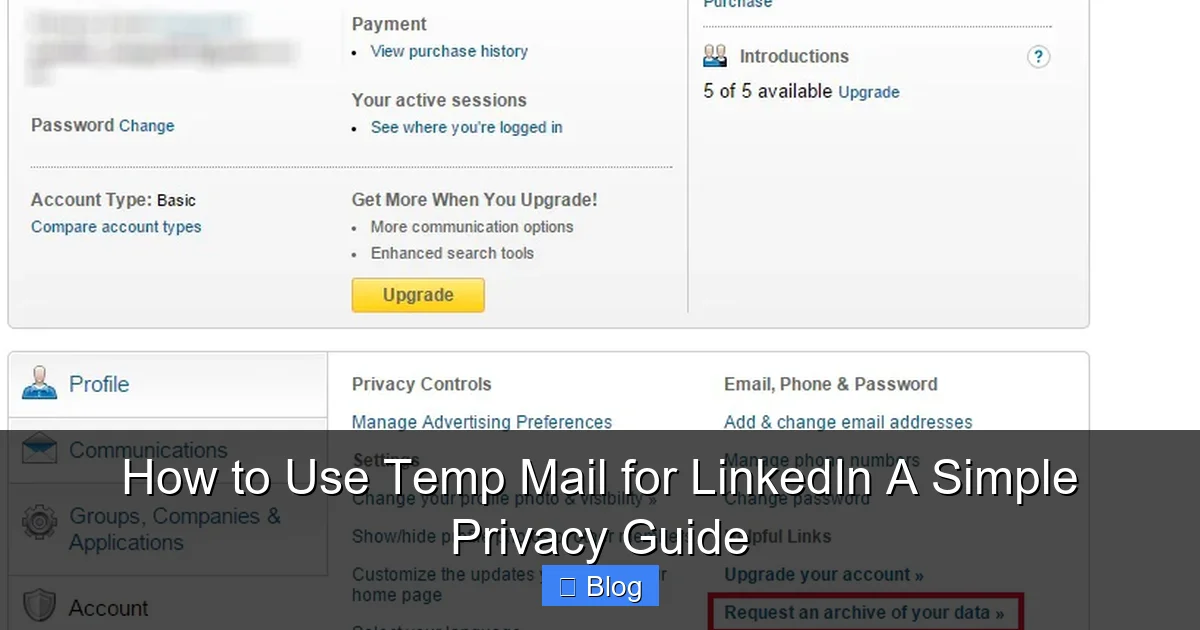
When creating a new LinkedIn account, paste your temp email into the email field. LinkedIn will send a verification link to that address. Switch back to your temp mail inbox, click the link, and boom—your account is verified. For existing accounts, go to Settings > Sign-in & security > Email addresses > Add email. Paste your temp mail address here, then verify it the same way. This lets you test features without exposing your main email.
Step 3: Manage Messages Like a Pro
Temp mail inboxes work like regular email clients. When someone messages you on LinkedIn (or sends a verification link), it pops up here. Reply directly from the temp mail interface—LinkedIn won’t know it’s temporary. Just remember: if the inbox expires, you lose access. Set a timer if needed! For longer conversations, consider moving to a real email once trust is established.
Smart Habits for Using Temp Mail Safely
Temp mail is a powerful tool, but it’s not foolproof. Use it wisely to avoid pitfalls.
Visual guide about How to Use Temp Mail for LinkedIn A Simple Privacy Guide
Image source: semperparatus.group
Do’s and Don’ts for Maximum Security
DO: Use temp mail for low-stakes actions—like verifying a new account or accepting a connection from someone you’re unsure about. DON’T: Use it for password resets or financial transactions. If LinkedIn locks your account, you’ll have no way to recover it. DO: Pair temp mail with a strong, unique password for your LinkedIn account. DON’T: Click suspicious links in temp mail inboxes—even if they seem legit. Temp mail won’t protect you from malware.
When to Switch to a Real Email
Temp mail is great for dipping your toes in, but it’s not for long-term networking. If you start building meaningful connections or applying for jobs, migrate to a real email. Here’s how: In LinkedIn Settings, add your primary email, verify it, then remove the temp address. This keeps your network intact while upgrading security. Think of temp mail as training wheels—it helps you balance at first, but you’ll want to ride freely later.
When Temp Mail Isn’t the Right Fit (Limitations)
Temp mail for LinkedIn isn’t a magic bullet. Know its limits to avoid frustration.
LinkedIn’s Detection Systems
LinkedIn’s algorithms are getting smarter. They sometimes flag accounts using temp mail as “low quality” or “suspicious,” especially if you’re mass-connecting or sending spammy messages. If your account gets restricted, switch to a real email immediately. Temp mail works best for organic, low-volume activity—not aggressive networking.
Short Lifespans = Short-Term Use Only
Most temp mail inboxes die in under an hour. That’s fine for verifying an account, but terrible if you’re waiting for a recruiter’s reply days later. If you need ongoing communication, use a dedicated LinkedIn email (e.g., “yourname.linkedin@gmail.com”) instead. Temp mail shines for one-off interactions—not relationship building.
No Recovery Options
Lost your temp mail inbox? Too bad. There’s no “forgot password” option. If LinkedIn sends a critical alert (like a security warning) to your temp address and it expires, you’re out of luck. Always have a backup plan—like adding a real email to your account first.
Beyond Temp Mail: Other Privacy Tactics for LinkedIn
Temp mail is just one piece of the privacy puzzle. Combine it with these strategies for ironclad security.
Email Aliases: Your Secret Weapon
Services like Gmail or Outlook let you create aliases—e.g., “yourname+linkedin@gmail.com”. LinkedIn sees this as a unique address, but all emails route to your main inbox. You can disable the alias anytime if spam rolls in. It’s temp mail’s sophisticated cousin: longer-lasting and fully controllable.
Dedicated LinkedIn Accounts
Create a separate email just for LinkedIn (e.g., “linkedin.yourname@proton.me”). Use it exclusively for networking. This keeps your personal and professional worlds distinct without relying on throwaway addresses. Pair it with a password manager to keep credentials secure.
Privacy Settings Deep Dive
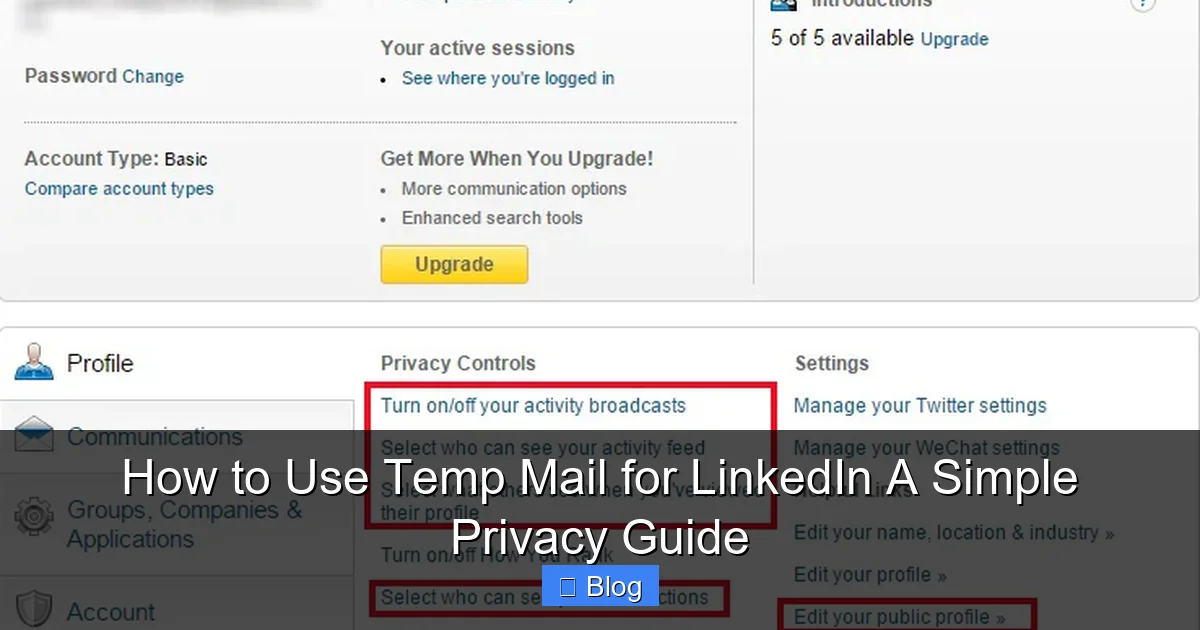
Temp mail hides your email, but LinkedIn still tracks your activity. Tweak these settings: Go to Settings > Visibility > Profile photo > “Only people you connect with”. Turn off “Notify network” when updating your profile. And under “Data privacy”, disable “Allow other companies to target you”. These small changes reduce your digital footprint significantly.
Conclusion: Take Control of Your LinkedIn Privacy
Using temp mail for LinkedIn isn’t about hiding—it’s about taking charge. In a world where your email address is as valuable as your resume, why hand it out freely? Temp mail gives you a low-effort, high-impact way to explore LinkedIn safely, test features anonymously, and dodge spam without lifting a finger. It’s the digital equivalent of wearing gloves while handling something sticky: simple, effective, and totally worth the habit.
Remember, privacy isn’t a one-time fix. Pair temp mail with strong passwords, 2FA, and smart privacy settings to build a fortress around your professional identity. Start small: next time you’re signing up for a LinkedIn Learning course or accepting a random connection, fire up TempMail.org and shield your real inbox. You’ll wonder why you didn’t do it sooner. Your future self—and your spam-free email—will thank you.
Frequently Asked Questions
Is temp mail safe for LinkedIn?
Yes, but with caveats. Temp mail protects your real email from spam and phishing, but LinkedIn may flag accounts using it for suspicious activity. Stick to low-risk actions like verification or casual networking, and avoid password resets.
Can LinkedIn detect and block temp mail?
Sometimes. LinkedIn’s systems occasionally blacklist known temp mail domains. If your verification email doesn’t arrive, try a different service (like Guerrilla Mail) or use an email alias instead.
What if I lose access to my temp mail inbox?
You’re out of luck—temp mail has no recovery options. Always add a real email to your LinkedIn account first, then use temp mail for secondary actions. Never rely on it for critical communications.
Can I use temp mail for job applications on LinkedIn?
Not recommended. Recruiters often check email validity, and temp mail addresses may seem unprofessional. Use a dedicated LinkedIn email or alias for job hunting to maintain credibility.
How long do temp mail inboxes last?
Most expire in 10–60 minutes (e.g., 10MinuteMail lasts 10 minutes; TempMail.org extends to 60+). Reload the service’s page to generate a new address if needed.
Does temp mail affect LinkedIn’s algorithm?
Indirectly. Accounts using temp mail for spammy behavior (e.g., mass-connecting) may get restricted. For genuine networking, it won’t hurt your visibility—but prioritize real emails for long-term growth.