Temp mail for beta testing lets you create disposable email addresses to avoid spam and protect your primary inbox during app trials. This guide shows you exactly how to use temporary emails safely, efficiently, and legally for beta testing, with step-by-step instructions and crucial security tips. Stop drowning in test account emails and keep your real identity private.
Key Takeaways
- Avoid Inbox Overload: Temp mail prevents your main email from flooding with beta test sign-ups, verification links, and notifications.
- Enhanced Privacy Protection: Disposable emails shield your real identity and personal data from potentially unvetted beta apps.
- Streamlined Testing Workflow: Easily manage multiple test accounts across different beta programs without juggling numerous real emails.
- Critical Safety Precautions: Never use temp mail for sensitive actions; beware of phishing and data harvesting risks inherent in free services.
- Choose Reputable Services: Prioritize temp mail providers with clear privacy policies, no-logs claims, and reliable uptime for consistent testing.
- Understand the Limitations: Temp mail isn’t foolproof; some services block disposable domains, and long-term account recovery is impossible.
- Combine with Other Tools: Use temp mail alongside unique passwords and 2FA (where possible) for maximum beta testing security.
📑 Table of Contents
- Stop the Spam Tsunami: Why Temp Mail is Your Beta Testing Superpower
- What Exactly is Temp Mail (and How Does it Work for Beta Testing)?
- Why You Absolutely Should Use Temp Mail for Beta Testing (The Big Wins)
- Your Step-by-Step Guide: How to Use Temp Mail for Beta Testing Safely
- Critical Safety Precautions: Using Temp Mail Without Getting Burned
- Pro Tips for Maximum Efficiency: Level Up Your Beta Testing Game
- Conclusion: Test Smarter, Not Harder (and Keep Your Inbox Clean)
Stop the Spam Tsunami: Why Temp Mail is Your Beta Testing Superpower
Hey there, fellow tester! So, you’ve landed an awesome beta opportunity for the next big app or game. You’re excited, ready to dive in and give feedback. But then… it happens. You sign up with your regular Gmail or Outlook address. Suddenly, your inbox becomes a warzone. Verification emails, welcome messages, feature update notifications, bug report confirmations, and worse – promotional spam from the *beta platform itself* or even third parties they “partner” with. It’s overwhelming. It’s messy. It’s a huge privacy risk. Sound familiar? This is exactly why learning how to use temp mail for beta testing isn’t just convenient – it’s essential for a sane, secure, and efficient testing experience.
Beta testing is crucial for developers. It helps them catch bugs, refine features, and ensure a smooth launch. But for testers, it often means sacrificing your personal email’s peace and privacy. You might hesitate to use your main account, fearing spam or data misuse. Maybe you create a *slightly* separate “junk” email, but that still ties back to you and can get cluttered fast. The solution? Temporary email addresses, or “temp mail.” Think of them as disposable aliases – perfect for the short-term, often anonymous, nature of beta testing. They let you interact with the beta platform just like a real user, but without leaving a permanent trace on your primary identity. In this guide, we’ll cut through the noise and show you exactly how to use temp mail for beta testing safely and efficiently, turning a potential headache into a seamless part of your workflow.
What Exactly is Temp Mail (and How Does it Work for Beta Testing)?
Visual guide about How to Use Temp Mail for Beta Testing Safely and Efficiently
Image source: appmole.com
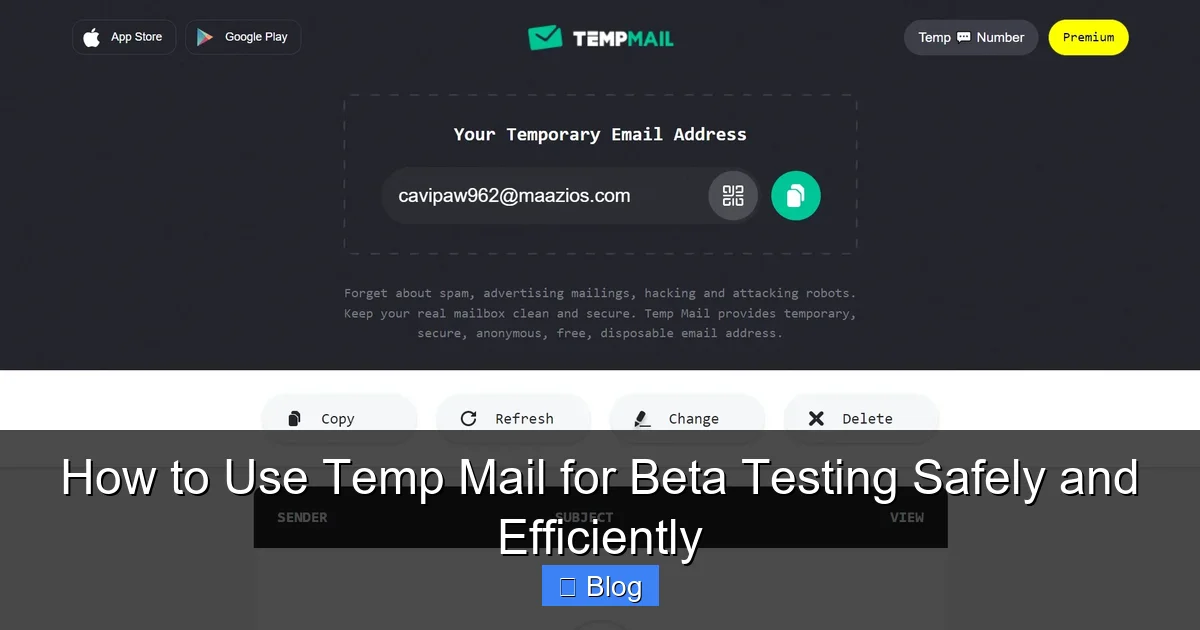
Before we dive into the *how*, let’s clarify the *what*. Temporary email (temp mail) services provide you with a short-lived, disposable email address. You don’t need to sign up or provide any personal information. You simply visit a temp mail website (like TempMail, 10MinuteMail, Guerrilla Mail, or many others), and it instantly generates a random email address for you – something like `fuzzy-panda789@tempmail.com`. This address exists for a limited time (usually 10 minutes to a few hours, sometimes extendable) or until you close the browser tab. Any emails sent to this address appear in the temp mail service’s web interface. You can read them, click links (like verification links!), and even sometimes send replies – all without revealing your real email.
The Beta Testing Connection: Why Temp Mail Fits Perfectly
Beta testing often requires creating an account. This usually involves:
1. Signing up with an email.
2. Clicking a verification link sent to that email.
3. Potentially receiving ongoing notifications about the beta.
Temp mail handles steps 1 and 2 flawlessly. You generate a temp address, use it to sign up for the beta, check the temp mail inbox for the verification email, click the link – boom, account activated. For the duration of the beta test (which might be days or weeks), you can keep checking that same temp mail inbox for important updates or password reset links if needed. It’s the perfect match for the temporary nature of most beta programs. You get the functionality of a real email address for the signup and verification process, but without the long-term commitment or spam risk to your personal account.
Beyond the Basics: Key Features of Temp Mail Services
Not all temp mail services are created equal. When choosing one for beta testing, look for these features:
* **Custom Domain Options (Sometimes):** A few services let you choose the domain part of the email (e.g., `@yourname.temp`). While less anonymous, it *can* look slightly less spammy to some systems, though most beta platforms won’t care.
* **Inbox Persistence:** How long does the inbox stay active? For beta testing, you need one that lasts at least as long as the beta program (often 7-30 days). Services like TempMail.org offer longer durations (up to 1 week or more) compared to the classic 10-minute services.
* **Link Clicking & Attachment Download:** Essential! You *must* be able to click verification links and potentially download beta invites or APK files directly within the temp mail interface. Most reputable services support this.
* **No Registration Required:** The whole point is anonymity. Avoid services that force you to create an account just to get a temp email – that defeats the purpose.
* **Ad-Free Experience (Ideal):** Some free services bombard you with ads. While unavoidable to some extent, excessive pop-ups or redirects can ruin the testing flow. Paid tiers often offer cleaner experiences.
Why You Absolutely Should Use Temp Mail for Beta Testing (The Big Wins)
Okay, we’ve established what temp mail is. Now, let’s hammer home *why* it’s not just a good idea, but a near-necessity for modern beta testers. The benefits go far beyond just avoiding a cluttered inbox.
1. Shield Your Primary Inbox from the Spam Avalanche
This is the most obvious win. Beta programs, especially early-stage ones, can be messy. You might get:
* Multiple verification emails (if something glitches).
* Daily/weekly update newsletters.
* Bug report confirmations for every single issue you log.
* Promotional emails for the *full* launch.
* Emails from the beta platform provider itself (like TestFlight, Google Play Beta, or proprietary systems).
Using your real email means all this lands in your main inbox, buried under personal and work messages. Temp mail acts as a spam firewall. All beta-related noise stays contained in the disposable inbox. Your real email remains clean and focused on what matters. Imagine signing up for 5 different beta tests in a week – without temp mail, that’s 5 different streams of potential spam hitting your main account. With temp mail? Five separate, clean inboxes that vanish when you’re done.
2. Fortify Your Privacy and Anonymity
Beta apps are often works-in-progress. You can’t always be 100% sure how securely they handle user data, or what their long-term privacy policies will be. Using your real name and email ties your identity directly to your feedback and usage patterns. Temp mail severs that link. The beta platform sees only the disposable address. Your real name, location (inferred from your email domain), and other personal details remain hidden. This is crucial for:
* **Avoiding Profiling:** Preventing the beta app or platform from building a profile of you based on your testing activity.
* **Reducing Targeted Ads:** Less chance of seeing ads related to the beta app later.
* **Protecting Against Data Breaches:** If the beta platform suffers a breach (more common than you’d think with new services), your real email isn’t exposed. Only the temp address is compromised – and it’s already disposable.
* **Maintaining Professionalism:** Keep your personal testing activities completely separate from your professional or primary personal identity.
3. Streamline Account Management Across Multiple Betas
Testing isn’t usually a one-and-done affair. You might be juggling several beta programs simultaneously – a new mobile game, a productivity app, a social media platform. Managing multiple real email accounts for each is a nightmare. You’d need to constantly switch between inboxes or set up complex forwarding rules. Temp mail simplifies this dramatically:
* **Dedicated Address per Beta:** Generate a unique temp email for *each* beta program. No confusion about which account belongs to which test.
* **Centralized Access:** All your beta inboxes are accessible from one temp mail service website (or app). Just log in and switch between your active temp addresses.
* **Effortless Cleanup:** When a beta ends, simply abandon that temp address. No need to log into a separate account to delete it or manage settings. It vanishes automatically. This organization saves significant time and mental energy.
4. Mitigate Risks from Unvetted or Shady Beta Programs
Unfortunately, not all beta opportunities are created equal. Some might be:
* **Phishing Scams:** Disguised as legitimate betas to steal credentials or personal info.
* **Data Harvesting Operations:** Primarily interested in collecting email addresses for spam lists.
* **Malware Distributors:** Sending malicious links or attachments disguised as beta invites.
Using your real email with such programs is incredibly risky. Temp mail acts as a sacrificial layer. If a beta turns out to be malicious:
* Clicking a suspicious link only compromises the *temp* address, not your real one.
* Providing the temp email for signup means spammers get a dead-end address.
* You can instantly abandon the temp inbox if something feels off, cutting off further contact.
It’s a simple, effective risk mitigation strategy.
Your Step-by-Step Guide: How to Use Temp Mail for Beta Testing Safely
Ready to put this into practice? Using temp mail for beta testing is straightforward, but doing it *safely* requires a few key steps. Follow this guide:
Step 1: Choosing the Right Temp Mail Service (Don’t Skip This!)
This is critical for safety and efficiency. Avoid random, obscure sites. Stick to well-known, reputable providers. Here’s what to look for:
* **Reputation & Longevity:** Services like TempMail.org, 10MinuteMail.com, and Guerrilla Mail have been around for years. Check recent reviews.
* **Clear Privacy Policy:** Does it explicitly state they don’t log your activity or store emails beyond the session? Avoid services with vague or predatory policies.
* **Inbox Duration:** For beta testing, prioritize services offering inboxes that last *at least* 7 days (TempMail.org is great for this). Avoid the ultra-short 10-minute services unless the beta is truly instantaneous.
* **Reliability & Uptime:** You don’t want the service to be down when you need to click a verification link. Check forums for uptime reports.
* **Minimal Intrusive Ads:** Excessive pop-ups or redirects can interfere with testing. Paid tiers (often $2-5/month) usually offer ad-free experiences – worth considering if you test frequently.
* **Pro Tip:** Bookmark 2-3 trusted services. Have a backup in case your primary is down.
Step 2: Generating Your Disposable Email Address
1. Open your chosen temp mail service in a *private/incognito browser window*. This adds an extra layer of separation from your regular browsing session and cookies.
2. The service will automatically generate a random email address (e.g., `blue-tiger456@tempmail.org`). **This is your beta testing email.**
3. **Crucial:** Copy this entire email address (username + @domain) to your clipboard. You’ll need it for signup.
4. **Optional but Recommended:** If the service allows, rename the inbox to something descriptive like “ProjectX_Beta” or “GameY_Test”. This helps immensely when managing multiple betas.
Step 3: Signing Up for the Beta Program
1. Go to the beta signup page (e.g., the developer’s website, TestFlight, Google Play Beta console).
2. Paste the temp email address you copied into the “Email” field.
3. Fill in any *other* required fields. **Be mindful:** Some betas might ask for a name or username. You can often use a pseudonym here too for extra anonymity, but check the beta’s rules. Avoid using real personal details unnecessarily.
4. Click “Sign Up,” “Join Beta,” or similar.
Step 4: Verifying Your Email (The Critical Step)
1. **Immediately** switch back to your temp mail service tab/window.
2. Refresh the inbox. You should see a verification email from the beta program (subject might be “Verify your email,” “Confirm your account,” etc.).
3. **Open the email.** Look carefully for the verification link. It’s usually a prominent button or text link.
4. **Click the verification link directly within the temp mail interface.** Do *not* copy the link and paste it elsewhere – this can sometimes break the process or expose you to risks.
5. The link should open a new tab confirming your email is verified, and often redirect you to the beta download/installation instructions. **Keep the temp mail tab open!** You might need it for password resets or other emails later in the beta.
Step 5: Managing the Beta Test & Ongoing Communication
* **Check the Temp Inbox Regularly:** Especially in the first few days, check for important updates, build updates, or instructions. Set a reminder if needed.
* **Click Links Safely:** Always click links (like download links for APKs or new build notifications) *within* the temp mail service’s web interface. This keeps the session contained.
* **Download Attachments Cautiously:** If you receive an attachment (like a beta invite PDF), download it *only* if you are 100% sure of the sender and necessity. Scan it with antivirus software before opening.
* **Password Resets:** If you need to reset a password for the beta account, the reset link will go to the temp email. Use the same process: check temp inbox, click link within the interface.
* **End of Beta:** Once the beta concludes and you no longer need the account, simply stop checking that temp inbox. It will expire automatically. No cleanup needed on your end.
Critical Safety Precautions: Using Temp Mail Without Getting Burned
Temp mail is a powerful tool, but it’s not magic armor. Using it recklessly can still lead to problems. Here’s how to stay safe:
Never Use Temp Mail for Sensitive Actions
This is non-negotiable. **Temp mail should ONLY be used for beta testing signups and related communications.** Absolutely avoid:
* **Financial Transactions:** Never use a temp email for banking, PayPal, shopping, or any service involving money.
* **Primary Account Recovery:** Don’t set a temp email as the recovery option for your *real* email, social media, or important accounts. If you lose access to the temp mail, you lose recovery options forever.
* **Legally Binding Agreements:** Don’t use temp mail for contracts, official registrations, or anything requiring verified identity.
* **Storing Sensitive Data:** Don’t send or receive highly confidential personal or financial information to/from a temp inbox. Assume anything sent there could be intercepted or logged (even if the service claims otherwise).
Beware of Phishing and Malware Traps
Beta testing attracts scammers. Temp mail helps, but stay vigilant:
* **Scrutinize Every Email:** Even in your temp inbox. Check sender addresses carefully. Does `support@real-beta-app.com` look legit, or is it `support@real-beta-app-security.com` (a common trick)? Hover over links (without clicking) to see the *real* URL destination.
* **Never Enter Real Credentials:** If a beta signup page *within* the temp mail email asks for your *real* email password or other sensitive info, it’s 100% a phishing scam. Close everything immediately.
* **Download Wisely:** Only download beta builds from official sources linked *within* the verified beta communication. Be extremely cautious of “urgent update” emails with download links – verify through the official beta channel first.
* **Trust Your Gut:** If something feels off, it probably is. Abandon the temp inbox and the beta program.
Understand the Privacy Limitations of Free Services
Free temp mail services need to make money. Be aware:
* **Email Content May Be Scanned:** Some services might scan email content for advertising purposes, even if they claim not to log *your* activity. Assume the content isn’t fully private.
* **IP Address Logging:** Most services will log your IP address when you access the inbox. While often not tied to the email content, it’s a privacy consideration.
* **Data Retention Policies Vary:** “No logs” claims aren’t always verifiable. Reputable services are transparent; avoid those that aren’t.
* **Pro Tip:** For maximum privacy, especially if testing highly sensitive projects, consider using a reputable paid temp mail service with a strong no-logs policy, or combine temp mail with a trusted VPN.
Domain Blocking: When Temp Mail Doesn’t Work
Some beta platforms, especially more established ones, actively block known disposable email domains to prevent spam accounts or abuse. If you get an error like “Disposable email addresses not allowed” during signup:
* **Don’t Panic:** It happens. It doesn’t mean the beta is bad.
* **Try a Different Service:** Switch to another reputable temp mail provider. Different services use different domains (e.g., @tempmail.org vs @10minutemail.com). One might work where another is blocked.
* **Check the Beta Rules:** Sometimes the beta program explicitly states acceptable email types. If they require a “real” email, you might need to use a dedicated, non-disposable secondary email *just for betas* (less ideal, but better than your primary).
* **Pro Tip:** If domain blocking is frequent for a specific platform (like some Google services), research if they have a known list of blocked domains. Some temp mail services advertise domains less likely to be blocked.
Pro Tips for Maximum Efficiency: Level Up Your Beta Testing Game
Now that you’ve mastered the basics and safety, let’s optimize your workflow:
Organize Like a Pro: Naming and Categorizing
* **Descriptive Inbox Names:** As mentioned earlier, rename your temp inboxes immediately after generation. Use patterns like `[AppName]_Beta_[Date]` or `[Platform]_Test` (e.g., `NotionMobile_Beta_20231027`, `TestFlight_GameZ`). This is invaluable when managing 5+ betas.
* **Browser Bookmarks:** Bookmark the temp mail service *and* create a folder specifically for your active beta temp inboxes (if the service allows direct links to specific inboxes).
* **Spreadsheet Tracker:** Maintain a simple spreadsheet: Beta Name, Temp Email Used, Signup Date, Key Contacts/Links, Status (Active/Ended). Saves frantic searching later.
Leverage Browser Features for Speed
* **Private Windows:** Always use a dedicated private/incognito window *just* for your temp mail and beta testing activities. Keeps cookies and history completely separate.
* **Tab Groups:** Organize all tabs related to a specific beta (signup page, temp inbox, app download, feedback form) into a single browser tab group. Easy to open/close everything at once.
* **Password Manager:** Use your password manager to generate and store a *unique, strong password* for each beta account. Never reuse passwords! The temp email handles the login ID; the password manager secures the account.
Advanced: Combining Temp Mail with Other Privacy Tools
* **Virtual Phone Numbers:** Some betas require SMS verification. Use a reputable virtual number service (like Google Voice, Burner, or MySudo) *alongside* temp mail for complete signup anonymity. Never use your real number.
* **Dedicated Testing Device/Account:** For ultimate separation, consider using a separate old phone or a secondary user profile on your device *just* for beta testing, logged into the temp mail service and beta apps. Keeps testing activity physically isolated.
* **Network Separation:** If extremely cautious, connect your testing device to a different Wi-Fi network (like a mobile hotspot) than your primary devices. Adds another layer, though often overkill for most betas.
Knowing When to Abandon Ship
Temp mail inboxes expire. Be prepared:
* **Check Expiry Time:** Note how long your chosen service keeps inboxes active (e.g., “7 days”). Mark your calendar if the beta runs longer.
* **Extend if Possible:** Some services let you “renew” the inbox for another period by clicking a button. Do this if the beta is still active.
* **Have a Backup Plan:** If an inbox expires *during* an active beta and you lose access to verification/reset emails, you might be locked out. For critical long-term betas, consider using a *very* long-duration temp service (some offer 30+ days) or a dedicated, non-disposable secondary email *just in case*. But prioritize temp mail for the initial signup/verification.
Conclusion: Test Smarter, Not Harder (and Keep Your Inbox Clean)
Beta testing is a fantastic way to get early access to exciting new software, shape its development, and be part of a community. But letting it hijack your primary email address is a fast track to frustration, spam overload, and unnecessary privacy risks. Learning how to use temp mail for beta testing safely and efficiently is one of the simplest, most effective upgrades you can make to your testing workflow.
By generating a disposable email address through a reputable service, you create a vital barrier between your real identity and the often-messy world of beta programs. You shield your inbox from the deluge of notifications, protect your personal data from potential misuse, and gain the ability to manage multiple test accounts with effortless organization. The step-by-step process – choosing a good service, generating the address, signing up, verifying, and managing communication – is straightforward once you do it a couple of times.
Remember the golden rules: **Never use temp mail for anything sensitive, stay hyper-vigilant for phishing attempts, understand the privacy trade-offs of free services, and always have a plan for inbox expiry.** Combine temp mail with unique passwords, private browsing, and smart organization, and you’ll transform beta testing from a potential headache into a streamlined, secure, and genuinely enjoyable part of your tech life.
So, the next time you see that “Join Beta” button, don’t hesitate. Fire up your trusted temp mail service, generate that disposable address, and dive in with confidence. Your primary inbox (and your peace of mind) will thank you. Happy testing!
Frequently Asked Questions
Is using temp mail for beta testing legal?
Yes, using temporary email addresses for beta testing is completely legal. Beta programs typically only require a valid email for signup and verification, not a permanently associated identity. Temp mail fulfills that requirement without violating any laws.
Can I receive verification emails and click links with temp mail?
Absolutely! This is the core function of temp mail for beta testing. Reputable services display incoming emails (including verification messages) in their web interface, and you can safely click links directly within that interface to activate your beta account.
Will developers ban me for using a temp email in their beta?
Generally, no. Most developers understand testers use temp mail to manage multiple accounts and avoid spam. However, *some* beta platforms actively block known disposable email domains. If signup fails, try a different temp mail service with a different domain.
How long do temp mail inboxes last for beta testing?
It varies by service. Basic free services often last 10-60 minutes, which is too short for most betas. Look for services specifically offering longer durations (7 days, 1 week, or even 30 days) like TempMail.org, which are ideal for beta testing periods.
Can I use temp mail for beta testing on Google Play or TestFlight?
Yes, but with a caveat. Google Play Beta and TestFlight *sometimes* block certain disposable email domains during signup. If you encounter an error, try a different temp mail service. Once the account is created via the web, the actual app testing on your device works normally.
What happens if my temp mail inbox expires during the beta?
If the inbox expires and you need to click a new verification link or reset a password, you’ll be locked out of that beta account. To prevent this, use a service with a long inbox duration (7+ days), renew the inbox if possible, or note the expiry date. For critical long-term betas, have a backup plan like a dedicated secondary email.