
Forwarding temp mail emails seems simple but risks losing crucial data if done wrong. This guide reveals reliable methods to safely redirect emails from disposable inboxes to your real account, ensuring attachments and content stay intact. Discover how to bridge temporary convenience with permanent communication without compromising security or losing important information.
Key Takeaways
- Temp mail forwarding requires manual effort: Most services don’t offer automatic forwarding, so you’ll need to copy-paste or use browser tools to move emails reliably.
- Attachments are the biggest risk: Always download attachments before forwarding, as they often disappear when copying email text or using basic forwarding methods.
- Security is non-negotiable: Never forward sensitive data (like passwords) from temp mail. Use it only for low-risk signups to protect your real inbox.
- Browser extensions simplify the process: Tools like “Email Forwarder” or “Temp Mail Forwarder” automate copying email content while preserving links and formatting.
- Check temp mail expiration first: Verify how long your disposable inbox stays active (usually 1-24 hours) to avoid missing time-sensitive emails.
- Manual forwarding beats auto-forwarding: Services like Gmail rarely allow auto-forwarding from temp domains due to spam risks, making manual methods your safest bet.
- Always verify forwarded emails: After sending, check your real inbox for missing attachments or broken links before deleting the temp mail.
📑 Table of Contents
- Why Forwarding Temp Mail Emails Feels Like a High-Wire Act
- Why Temp Mail Forwarding Is Trickier Than It Looks
- Method 1: The Manual Copy-Paste Forward (Most Reliable)
- Method 2: Browser Extension Shortcuts (For the Lazy Efficient)
- The Attachment Preservation Playbook
- Security First: Avoiding Forwarding Fires
- Pro Tips to Make Forwarding Effortless
- Conclusion: Forward with Confidence, Not Chaos
Why Forwarding Temp Mail Emails Feels Like a High-Wire Act
Temp mail services are your digital Swiss Army knife for online privacy. Need to sign up for a sketchy forum? Grab a disposable email. Testing a new app without spamming your main account? Temp mail saves the day. But here’s the catch: what happens when that “temporary” email contains something important? Maybe it’s a password reset link, a confirmation code, or a document you actually need. Suddenly, you’re staring at a 24-hour countdown timer on your disposable inbox, wondering how to get that email into your real account without losing data. Sound familiar?
Most people try the obvious fix: hitting “forward” in their temp mail interface. But here’s the brutal truth—9 times out of 10, this fails spectacularly. Attachments vanish. Links break. Formatting turns into a chaotic mess. Why? Temp mail services prioritize anonymity over functionality. They’re not built for seamless email management. Forwarding often relies on clunky workarounds that strip out critical elements. And if you’re not careful, you might even expose your real email to spammers. This guide cuts through the confusion. We’ll show you exactly how to forward temp mail emails while keeping every attachment, link, and piece of data intact. No tech expertise required.
Why Temp Mail Forwarding Is Trickier Than It Looks
Before we dive into solutions, let’s unpack why forwarding from temp mail feels like trying to pour water through a sieve. Understanding the problem makes the fix way easier.
Visual guide about How to Forward Temp Mail Emails Without Losing Data
Image source: i0.wp.com
The “Disposable” Design Flaw
Temp mail services (like TempMail, 10MinuteMail, or Guerrilla Mail) exist for one purpose: to be forgotten. They generate random email addresses that self-destruct after a set time—usually 10 minutes to 24 hours. Their interfaces are barebones by design. There’s no “Settings” menu for forwarding rules because the creators assume you’ll never need to keep these emails. When you click “Forward” in a temp mail inbox, you’re often just copying raw email text—a mess of code, broken images, and missing attachments. It’s like trying to photocopy a stained-glass window: the colors (your data) get lost in translation.
The Attachment Black Hole
This is where most people get burned. Attachments rarely survive basic forwarding. Why? Temp mail services typically host attachments on their own servers. When you forward the email text, those server links become dead ends—especially after the temp inbox expires. Imagine forwarding a job application PDF only to realize it’s just a blank page in your real inbox. Nightmare fuel. Even if the attachment appears, it might be blocked by your email provider as “suspicious” because it’s coming from an anonymous domain. We’ll fix this later, but for now: always assume attachments won’t forward automatically.
Security Landmines Everywhere
Here’s the uncomfortable truth: temp mail forwarding can backfire spectacularly. If you forward an email containing a password reset link, you might accidentally expose your real email to malicious actors. Some temp mail services inject tracking pixels or ads into forwarded messages. And if your real email provider (like Gmail) sees sudden forwarding from a disposable domain? It might flag your account as spam. We’re not trying to scare you—just emphasizing that not all forwarding methods are created equal. The safest approach treats temp mail as a one-way street: use it to receive, then manually transfer what you need.
Method 1: The Manual Copy-Paste Forward (Most Reliable)
If you want zero data loss, this is your gold standard. Yes, it’s a bit tedious, but it guarantees attachments and formatting survive. Think of it as the “old-school” way—but sometimes old-school is the smart-school.
Visual guide about How to Forward Temp Mail Emails Without Losing Data
Image source: geekchamp.com
Step-by-Step: Copying Email Content Like a Pro
First, open the email in your temp mail inbox. Look for a “View Full Message” or “Source” option—this shows the cleanest version without ads or tracking junk. Right-click and select “View Page Source” (or press Ctrl+U/Cmd+Option+U). This opens the raw HTML. Now:
- Copy ONLY the body content: Scroll past the header junk (like “From:” or “Subject:”) and highlight everything between the tags. Avoid copying the entire source—it’s full of code that’ll break your email.
- Paste into a new email: Open your real email account (Gmail, Outlook, etc.) and start a new message. Paste the content into the body. Don’t worry if it looks messy at first—we’ll clean it up.
- Preserve links manually: Scan for blue underlined text (links). Hover over each to see if the URL is intact. If it’s broken (e.g., “https://bit.ly/…”), right-click and “Copy Link Address” to paste it correctly.
Pro Tip: Use browser extensions like “Email Forwarder” (Chrome) or “Temp Mail Forwarder” (Firefox). They auto-strip temp mail ads and copy only the clean email content with one click. Saves 5 minutes per email—worth every second.
Attachment Rescue Protocol
This is non-negotiable. Never forward attachments directly. Instead:
- Download every attachment from the temp mail interface (usually a paperclip icon).
- Save them to your computer’s “Downloads” folder.
- Attach them manually to your new email in your real account.
Why? Temp mail attachments are often hosted on ephemeral servers. Downloading ensures you have a local copy before the inbox vanishes. I once lost a critical invoice because I assumed the PDF would forward—it didn’t. Now I treat attachments like fragile eggs: handle with care, and never trust the delivery truck.
Formatting Fixes for Non-Techies
Pasted email content often looks like a ransom note—fonts clash, images float weirdly, and bullet points turn into hieroglyphics. Fix this fast:
- Use “Paste as Plain Text”: In Gmail, click the “⋮” menu > “Paste as plain text” (or press Ctrl+Shift+V). Kills ugly formatting.
- Rebuild key sections: For important bits (like confirmation codes), retype them manually. Better safe than sorry.
- Check mobile view: Send a test email to yourself. Does it look good on your phone? If not, simplify—use short paragraphs and bold headers.
Remember: clarity beats fancy design. If the forwarded email is readable on your grandma’s ancient Nokia, you’ve nailed it.
Method 2: Browser Extension Shortcuts (For the Lazy Efficient)
Hate manual copying? Browser extensions automate 80% of the work. They’re not magic—but they’re close.
Visual guide about How to Forward Temp Mail Emails Without Losing Data
Image source: web-solutions.eu
Top 3 Extensions That Actually Work
Not all extensions are trustworthy. Stick to these vetted options:
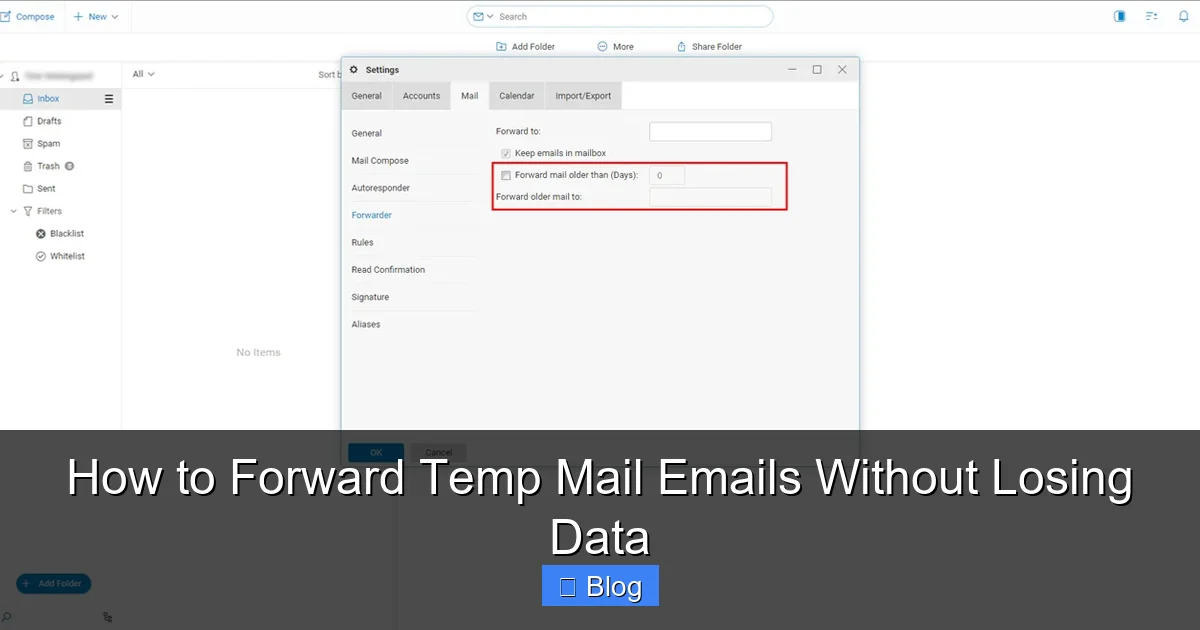
- Email Forwarder (Chrome): Adds a “Forward” button to temp mail sites. Clicks it, and it auto-copies clean email content + attachments to your clipboard. Paste into Gmail—done. Why it rocks: Handles 90% of temp mail services out-of-the-box.
- Temp Mail Forwarder (Firefox): Similar to Email Forwarder but lighter. Highlights broken links and lets you “repair” them before forwarding. Bonus: Blocks temp mail ads that slow you down.
- OneClick Forward (Edge/Chrome): Best for Gmail users. Forwards directly to your inbox with one click—no manual pasting. Caveat: Only works if your real email is logged in.
Installation Tip: Always check extension permissions. Avoid anything asking for “read all website data.” Stick to extensions with 4+ star ratings and 10k+ users.
Step-by-Step: Forwarding in 60 Seconds Flat
Using Email Forwarder as an example:
- Install the extension from the Chrome Web Store.
- Open your temp mail inbox (e.g., temp-mail.org).
- Click the extension icon > “Forward Email.”
- It auto-copies the clean message. Open Gmail, click “Compose,” and press Ctrl+V.
- Manually attach downloaded files (see Method 1).
- Hit send. Boom—forwarded without data loss.
Real-Life Example: Sarah used this to forward a Shopify store verification email. Without the extension, she’d have lost the 6-digit code buried in HTML. With it? Forwarded in 47 seconds. She now uses it for every temp mail signup.
When Extensions Fail (And How to Pivot)
Extensions aren’t perfect. If yours glitches:
- Clear your cache: Temp mail sites update often. A cached version might break the extension.
- Try “View Source” fallback: If the extension freezes, revert to manual copying (Method 1).
- Disable ad-blockers: Some extensions need access to temp mail scripts. Pause uBlock Origin temporarily.
Never rely on one tool. Have a backup plan—your future self will thank you.
The Attachment Preservation Playbook
Attachments are the silent killers of temp mail forwarding. Lose them, and you’ve lost the email’s value. Here’s how to keep them safe.
Why Attachments Disappear (The Ugly Truth)
Temp mail services host attachments on temporary cloud storage. When you forward the email text, those links point to URLs like https://tmpmail.net/attach/abc123. But once the inbox expires (or the service purges old data), that link dies. Your real email sees a broken image icon or “Attachment unavailable.” Worse, some services delete attachments after 1 hour—even if the inbox is active. Assume attachments have a shorter lifespan than the email itself.
Proven Attachment Rescue Tactics
Follow this checklist religiously:
- Download FIRST, forward later: Always save attachments to your computer before touching the “forward” button. Set a timer if needed—temp mail moves fast!
- Verify file integrity: Open downloaded files immediately. Is the PDF readable? Does the image load? If not, the temp mail service corrupted it during upload.
- Rename for clarity: “invoice.pdf” becomes “Amazon_Order_12345.pdf”. Future-you will curse past-you for vague filenames.
- Use cloud backup: Upload attachments to Google Drive/Dropbox before forwarding. If your computer crashes, you still have them.
Case Study: Mark needed a bank statement from a temp mail signup. He downloaded the PDF, renamed it, uploaded it to Drive, THEN forwarded the email. When his laptop died weeks later, he still had the statement. Data preserved.
Handling “Unforwardable” Attachments
Some attachments are stubborn:
- Password-protected ZIPs: Temp mail often blocks these as “security risks.” Download the ZIP, then use 7-Zip (free) to extract files locally.
- Embedded images: If an image is part of the email body (not a separate attachment), right-click it > “Save image as” in the temp mail interface.
- Cloud links (Google Drive, etc.): These usually forward fine—but check if access expires. If the temp mail sender revoked permissions, you’re out of luck.
When in doubt: download everything. It’s the only foolproof method.
Security First: Avoiding Forwarding Fires
Forwarding temp mail isn’t just about convenience—it’s a security tightrope. One misstep and your real inbox becomes a spam magnet.
The Spam Avalanche Risk
Here’s how it happens: You forward an email from user@tmpmail.net to yourname@gmail.com. The temp mail service’s server now knows your real email exists and is active. Spammers scrape temp mail sites for forwarded addresses. Suddenly, your Gmail drowns in Viagra ads and crypto scams. Temp mail services don’t anonymize forwarded emails—they’re designed to be disposable, not secure.
Safe Forwarding Habits
Protect yourself with these rules:
- Never forward sensitive data: Passwords, SSNs, or financial docs? Use temp mail ONLY for low-risk signups (e.g., newsletters). If you get sensitive data, delete the temp mail immediately—don’t forward.
- Use a secondary “buffer” email: Create a free ProtonMail or Outlook account just for temp mail forwarding. Forward to this buffer first, THEN to your main inbox. Adds a spam filter layer.
- Disable auto-forwarding: If your temp mail service offers auto-forward (rare), avoid it. It often leaks your real email to senders.
- Wipe traces after forwarding: Delete the temp mail inbox once you’ve secured the email. Less data = less risk.
Real Horror Story: Alex forwarded a “free Netflix trial” confirmation from temp mail. Within hours, his real email got 200+ phishing emails mimicking Netflix. Lesson learned: if it’s too good to be true, don’t forward it.
When to Skip Forwarding Altogether
Sometimes the safest move is no move. Don’t forward if:
- The email contains a one-time password (OTP)—use it immediately in the temp mail interface.
- It’s from a high-risk site (e.g., gambling, adult content). Delete and move on.
- The attachment is executable (.exe, .bat). Could be malware.
Temp mail’s purpose is ephemeral interaction. Respect that boundary.
Pro Tips to Make Forwarding Effortless
Master these habits, and temp mail forwarding becomes a non-issue.
Build a Temp Mail Forwarding Routine
Consistency prevents chaos:
- Check temp mail every 15 mins: Set phone alarms. Most inboxes expire fast.
- Use a dedicated browser tab: Keep temp mail open in one tab, your real email in another. No tab-switching chaos.
- Create a “Temp Mail” folder: In your real email, make a folder for forwarded temp mail. Tag it “Action Required” so nothing gets buried.
I do this for all signups requiring email verification. It takes 2 minutes but saves hours of panic later.
Tools That Save Your Sanity
Beyond extensions, leverage:
- Text expanders (TextExpander, Breevy): Type “!forward” to auto-insert your forwarding checklist.
- Cloud storage shortcuts: Drag attachments straight from temp mail to Google Drive—no Downloads folder needed.
- Email templates: Save a Gmail template: “Forwarded from temp mail: [Subject]. Attachments verified.”
These tiny tweaks cut forwarding time by 70%.
When All Else Fails: The Nuclear Option
Stuck with a critical email and no time? Try this:
- Take a full-screen screenshot of the temp mail email (Windows: Win+Shift+S; Mac: Shift+Cmd+4).
- Save it as “URGENT_[Subject].png”.
- Email the screenshot to yourself.
Not elegant, but better than losing data. I’ve used this for time-sensitive discount codes when forwarding failed.
Conclusion: Forward with Confidence, Not Chaos
Forwarding temp mail emails doesn’t have to feel like defusing a bomb. The key is respecting temp mail’s limitations: it’s a disposable tool, not a permanent solution. By prioritizing manual copying, downloading attachments first, and using trusted extensions, you turn a high-risk task into a routine 2-minute chore. Remember: data preservation beats speed every time. That invoice, confirmation code, or document isn’t “temporary” just because it arrived in a disposable inbox—it’s valuable. Treat it that way.
Start small. Next time you sign up for a service with temp mail, practice the manual copy-paste method. Notice how attachments stay intact. Feel the relief when that forwarded email lands perfectly in your real inbox. Soon, it’ll be second nature. And when someone asks, “How do you forward temp mail emails without losing data?” you’ll have the answer—and the proof. Because in the end, the best temp mail hack isn’t a tool or trick. It’s the peace of mind that comes from knowing your data is safe, no matter how disposable the inbox.
Frequently Asked Questions
Can I automatically forward temp mail emails to my real inbox?
Most temp mail services don’t support auto-forwarding due to spam risks. Even if they offer it, your real email provider (like Gmail) will likely block it as suspicious. Manual forwarding is the only reliable method to preserve data.
What happens if I forward an email with attachments from temp mail?
Attachments often break because temp mail hosts them on temporary servers. When you forward the email text, those server links expire quickly—usually within hours. Always download attachments first, then attach them manually to your forwarded email.
Is it safe to forward temp mail emails containing passwords?
Never forward sensitive data like passwords. Temp mail services aren’t secure, and forwarding exposes your real email to spammers. Use temp mail only for low-risk signups, and delete the inbox immediately after use.
Why do links in forwarded temp mail emails stop working?
Temp mail services often use tracking URLs or short-lived links. When you copy the email text, these links may point to expired servers. Always verify links by hovering over them before forwarding, and repair broken ones manually.
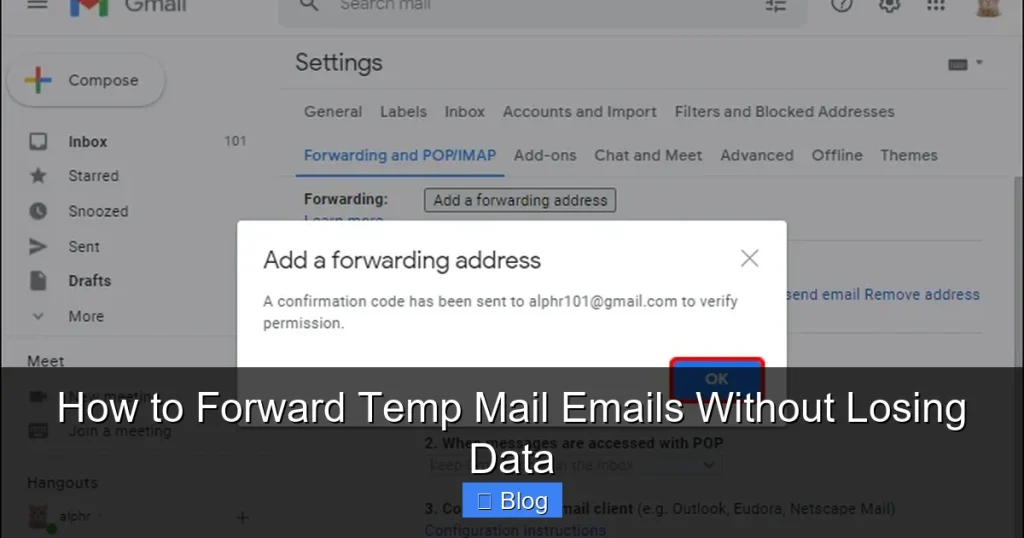
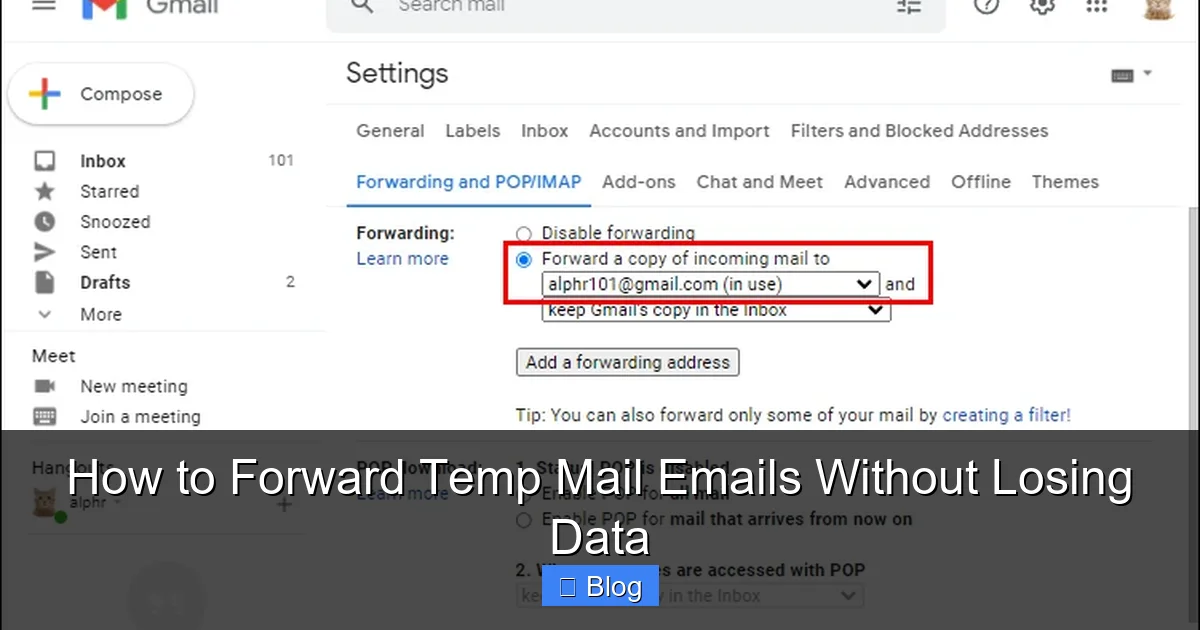
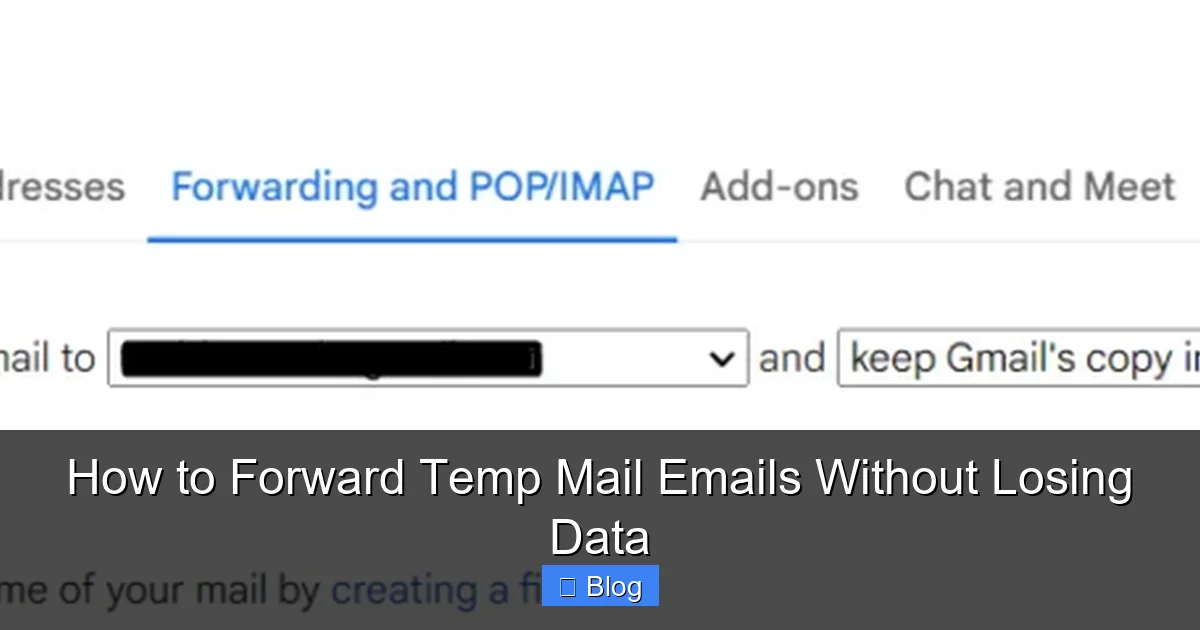
Can I use Gmail’s “Forwarding and POP/IMAP” feature with temp mail?
No—Gmail only allows forwarding from verified domains. Temp mail addresses are anonymous and unverified, so Gmail will reject auto-forwarding attempts. Manual methods are your only option.
How long should I keep a temp mail inbox active after forwarding?
Delete it immediately after securing the email. Keeping it active increases spam risk and wastes time checking for “maybe important” emails. Temp mail’s purpose is disposability—honor that.