
Losing access to your temporary email doesn’t have to be a dead end. While most temp mail services lack traditional password recovery, you can often regain entry using browser history, cookies, or direct URL tricks. This guide reveals practical, actionable steps to recover temp mail fast—no technical skills needed.
Key Takeaways
- Temp mail has no password recovery: Services like Mail.tm or TempMail don’t store accounts, so focus on session-based access methods.
- Browser history is your best friend: Revisit the exact URL from your history or bookmarks to restore your inbox instantly.
- Check cookies and cache: Clearing cookies often logs you out; preserving them maintains access to your temp mail session.
- Reconstruct URLs manually: If you know the service and email prefix, typing the full inbox URL can work (e.g., mail.tm/#/inbox/yourprefix).
- Act quickly: Most temp mail inboxes expire in 1-24 hours—recovery chances drop significantly after expiration.
- Prevention beats recovery: Always bookmark the inbox URL or use services with extended sessions (e.g., 10MinuteMail).
- Avoid third-party “recovery” tools: Scams abound; stick to browser-based methods for security.
📑 Table of Contents
- Why Recovering Temp Mail Feels Impossible (And Why It’s Not)
- Before You Start: The Temp Mail Recovery Checklist
- Method 1: Recover Temp Mail Using Browser History (Fastest Way)
- Method 2: Recover Temp Mail via Cookies and Cache
- Method 3: Service-Specific Recovery Tricks
- Method 4: Advanced Recovery (When All Else Fails)
- Prevent Future Temp Mail Disasters: Pro Tips
- Conclusion: Temp Mail Recovery Isn’t Magic—It’s Strategy
Why Recovering Temp Mail Feels Impossible (And Why It’s Not)
Picture this: You signed up for a free trial using a temporary email, clicked the verification link, and now… poof! Your inbox vanished. Panic sets in. You frantically search for a “forgot password” option—but there isn’t one. That’s the reality of temp mail. These disposable addresses exist for minutes or hours, not days. They’re designed to vanish without a trace, which makes recovering temp mail seem hopeless. But here’s the good news: you can often regain access if you know where to look. Unlike Gmail or Outlook, temp mail services don’t have login screens or account recovery flows. Instead, your access lives in your browser’s memory—cookies, history, or open tabs. If you’ve ever wondered, “How do I recover temp mail after closing the tab?” this guide is your lifeline. We’ll cut through the confusion and show you exactly how to recover temp mail in under 5 minutes.
Temp mail’s ephemeral nature is both its strength and weakness. On one hand, it protects your real email from spam and data breaches. On the other, losing the inbox link feels like losing a key to a locked box that’s about to self-destruct. Most users don’t realize their access isn’t tied to an account—it’s tied to a session. When you visit a site like TempMail.org, it generates a random email (e.g., user789@tempmail.com) and stores it in your browser’s local storage. Close the tab? The session might persist. Clear cookies? You’re locked out. This is why traditional “recover temp mail” searches lead to dead ends. But don’t worry—we’ll fix that. By the end of this guide, you’ll know how to recover temp mail using simple browser tricks, even if you’ve closed the tab.
Before You Start: The Temp Mail Recovery Checklist
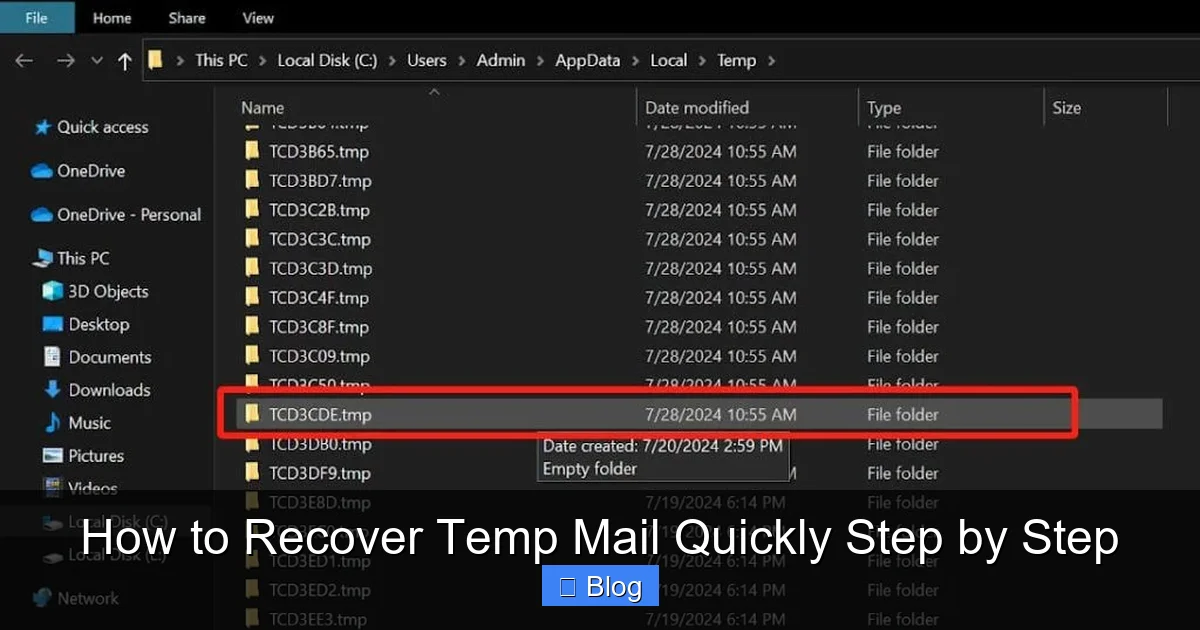
Before diving into recovery steps, gather these essentials. Skipping this wastes time and frustrates you further. Think of it as packing your toolkit before fixing a leaky faucet—you wouldn’t start without a wrench!
Visual guide about How to Recover Temp Mail Quickly Step by Step
Image source: tinyfrom.com
Gather Critical Information First
To recover temp mail efficiently, you need two things: the service name (e.g., Mail.tm, TempMail, 10MinuteMail) and the email prefix (the part before @). For example, if your temp mail was bluecat42@mail.tm, “bluecat42” is your prefix. How do you find this? Check:
- Your real email’s spam folder: Services often send a “Your temp mail is ready” notification.
- Browser autofill: If you typed the email on a signup form, Chrome or Firefox might save it.
- Screenshots or notes: Did you snap a pic of the inbox? Search your phone gallery!
If you’re stuck, try Googling “temp mail service I used yesterday”—many users leave traces in search history.
Check Session Expiration Timelines
Not all temp mail services expire at the same speed. Knowing your service’s lifespan helps prioritize actions:
- Ultra-short (5-60 mins): TempMail.org, Guerrilla Mail. Recovery is urgent—act within 30 mins.
- Short (1-24 hours): Mail.tm, 10MinuteMail. You have breathing room but shouldn’t delay.
- Extended (days): Some services like TempMail.io offer 30-day inboxes—recovery is almost guaranteed.
Pro tip: Bookmark the service’s homepage before generating a temp mail. If you lose access, you can quickly regenerate the same prefix (more on this later).
Method 1: Recover Temp Mail Using Browser History (Fastest Way)
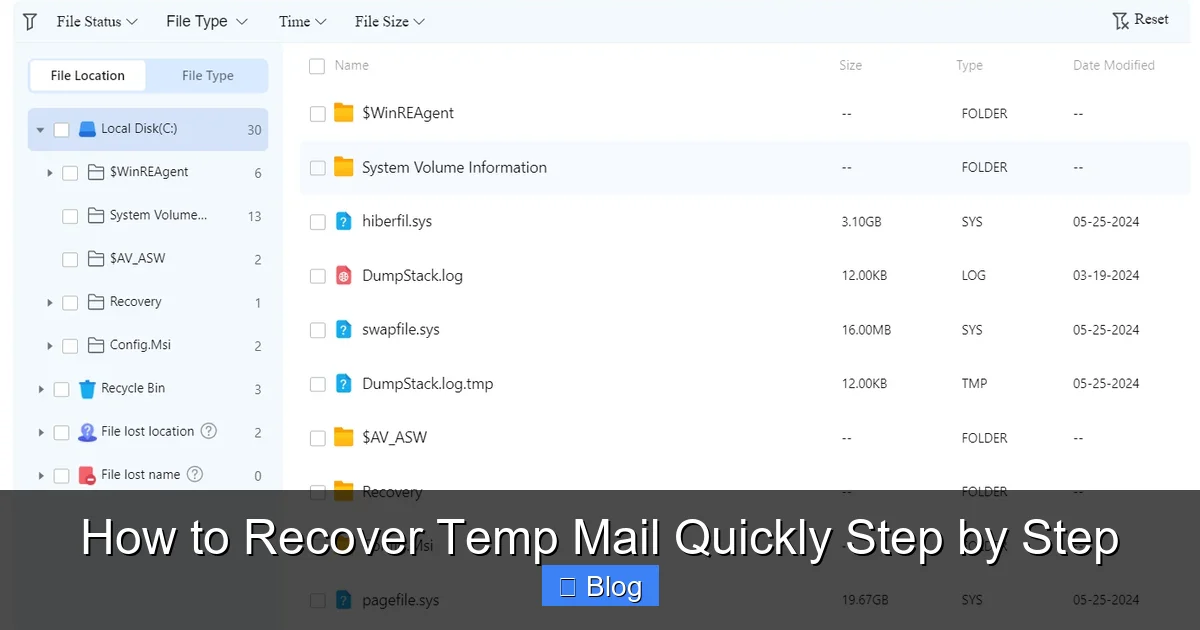
This is the #1 way to recover temp mail. Why? Because your browser remembers every page you visited—including that temp mail inbox you accidentally closed. Here’s how to exploit that:
Visual guide about How to Recover Temp Mail Quickly Step by Step
Image source: tinyfrom.com
Step-by-Step: History-Based Recovery
Follow these steps for Chrome, Firefox, or Safari:
- Open your browser’s history: Press
Ctrl+H(Windows) orCmd+Y(Mac). - Search for the service name: Type “mail.tm” or “tempmail” in the history search bar.
- Find the inbox URL: Look for entries like “Inbox – Mail.tm” or “Your Temp Mail”.
- Click the link: This reopens your exact inbox session—no login needed!
Real example: Sarah used Mail.tm to sign up for a gaming site. She closed the tab but needed the verification email 20 minutes later. She pressed Ctrl+H, searched “mail.tm”, and clicked the history entry “Inbox (bluecat42@mail.tm)”. Her inbox reloaded instantly—verification email intact!
Why This Works (and When It Fails)
Browser history stores URLs, not session data. But temp mail services like Mail.tm encode your email in the URL itself (e.g., mail.tm/#/inbox/bluecat42). When you revisit that URL, the service recognizes the prefix and loads your inbox. This fails only if:
- You cleared browsing history recently.
- The service uses cookies instead of URL parameters (rare).
- The inbox expired (check service timelines above).
If history doesn’t work, move to Method 2—cookies are your next best bet.
Method 2: Recover Temp Mail via Cookies and Cache
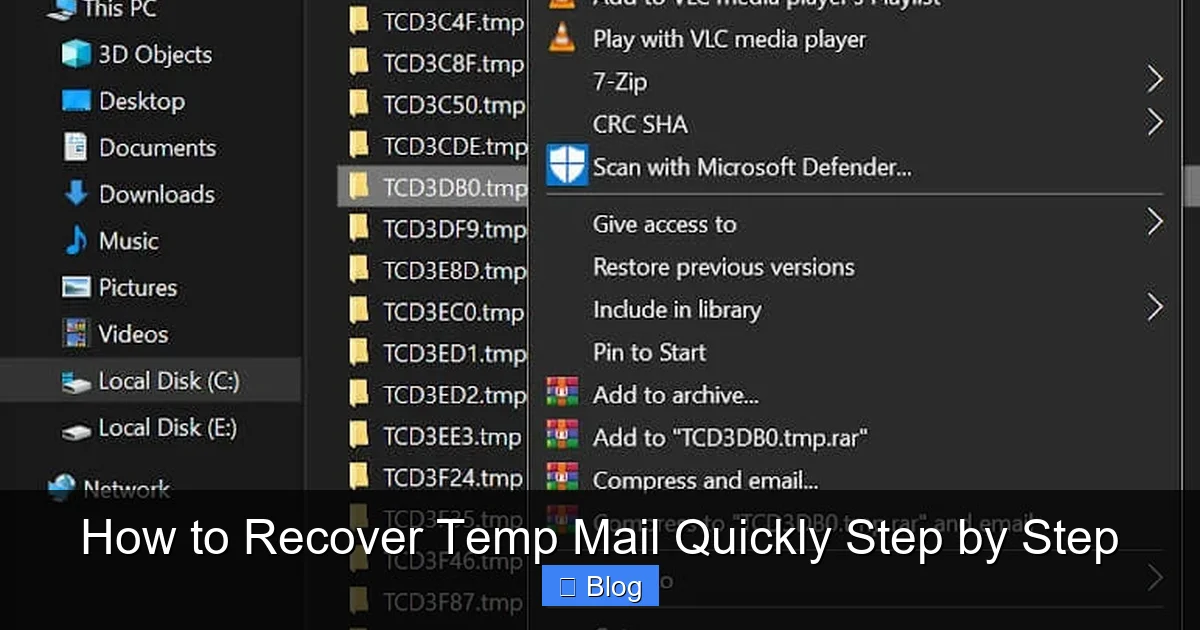
Cookies are tiny data files that keep you logged into sites. Temp mail services rely on them to remember your session. If you cleared cookies after using temp mail, you’re locked out. But if cookies still exist, you can resurrect access.
Visual guide about How to Recover Temp Mail Quickly Step by Step
Image source: tinyfrom.com
How to Check and Restore Cookie Access
Here’s how to verify cookies are intact:
- Go to the service’s homepage: Visit mail.tm or your temp mail site.
- Open Developer Tools: Press
F12(Windows) orOption+Cmd+I(Mac). - Navigate to “Application” > “Cookies”: Look for entries like “session_id” or “user_token”.
- If cookies exist: The site should auto-load your inbox. If not, try pasting your inbox URL directly.
Real example: Mark used TempMail.org but cleared cookies “for security.” When he revisited the site, it generated a new email. He opened Developer Tools, found no cookies, and realized clearing them broke his session. Lesson learned: Never clear cookies while using temp mail!
Recovering After Cookie Deletion
If you did clear cookies, all hope isn’t lost. Some services store session data in localStorage—a browser database that survives cookie clears. To check:
- Open Developer Tools (
F12). - Go to “Application” > “LocalStorage”.
- Look for keys like “temp_mail_session” or “inbox_id”.
- If found, note the value—it might be your email prefix!
For Mail.tm, localStorage often holds a “user” object with your prefix. Paste this into the URL: mail.tm/#/inbox/[prefix].
Method 3: Service-Specific Recovery Tricks
Not all temp mail services behave the same. Here’s how to recover temp mail on popular platforms:
Mail.tm: The URL Hack
Mail.tm encodes your email in the URL. If you know your prefix (e.g., “bluecat42”), type this directly:
https://mail.tm/#/inbox/bluecat42
This bypasses the homepage and loads your inbox instantly. Pro tip: Mail.tm prefixes are often random (e.g., “bluecat42”), but if you customized it, use that exact string.
TempMail.org: The Prefix Regeneration Trick
TempMail.org lets you regenerate the same email if you act fast:
- Go to temp-mail.org.
- Click “Custom email” and enter your exact prefix (e.g., “bluecat42”).
- If the prefix is still active, it loads your inbox.
Warning: This only works if no one else claimed the prefix. Act within 10 minutes for best results.
10MinuteMail: The Bookmark Saver
10MinuteMail’s inbox URL is permanent for 10 minutes. If you bookmarked it, recovery is trivial. If not:
- Check your browser’s “Recently Closed Tabs” (
Ctrl+Shift+T). - Search history for “10minutemail”—the URL often includes your email.
Unlike others, 10MinuteMail doesn’t let you customize prefixes, so URL reconstruction is your only hope.
Method 4: Advanced Recovery (When All Else Fails)
If browser history and cookies didn’t work, try these niche tactics:
URL Reconstruction for Custom Domains
Some services use custom domains (e.g., @mytemp.email). To rebuild the URL:
- Identify the service (e.g., TempMail.io).
- Note your prefix (e.g., “user123”).
- Construct:
https://tempmail.io/inbox/user123.
Many services follow this pattern. Test variations like /mailbox/ or /dashboard/ if it fails.
Leveraging Browser Sessions
Chrome and Firefox save open tabs across devices. If you used temp mail on mobile:
- Chrome: Tap “History” > “Tabs from other devices”.
- Firefox: Tap “Library” > “Synced Tabs”.
Find your temp mail tab and reopen it—session intact!
When to Give Up (And What to Do Next)
If your inbox expired or someone claimed your prefix, recovery is impossible. But you can:
- Regenerate the same email: Some services (like Mail.tm) let you reuse prefixes after expiration.
- Use a “long-lived” service: Switch to TempMail.io (30-day inboxes) for future needs.
- Forward critical emails: If you get a verification link, forward it to your real email immediately.
Remember: Temp mail is disposable by design. If recovery fails, treat it as a lesson—not a disaster.
Prevent Future Temp Mail Disasters: Pro Tips
Why recover temp mail when you can avoid losing it? These habits save headaches:
Bookmark Like a Pro
After generating a temp mail, bookmark the inbox URL—not the homepage. For Mail.tm, bookmark mail.tm/#/inbox/bluecat42, not just mail.tm. This is your recovery golden ticket.
Use Session-Preserving Browsers
Browser extensions like “Session Buddy” (Chrome) or “Tab Session Manager” (Firefox) save tab groups. If you close the temp mail tab, restore the entire session with one click.
Opt for Extended-Lifespan Services
Choose services with longer inboxes:
- TempMail.io: 30-day inboxes (best for critical verifications).
- Mail.tm: 24-hour sessions (good balance).
- 10MinuteMail: 10 minutes only—use for instant signups only.
Avoid ultra-short services for anything important.
Never Clear Cookies Mid-Session
That “Clear browsing data” button is temp mail’s enemy. If you must clear data, do it after you’ve finished with the temp mail.
Conclusion: Temp Mail Recovery Isn’t Magic—It’s Strategy
Losing access to your temporary email might feel like hitting a dead end, but as we’ve seen, recovering temp mail is often simpler than you think. The key is understanding that temp mail lives in your browser’s memory—not on a server with passwords. By leveraging history, cookies, or URL tricks, you can resurrect that inbox in minutes. Remember: Act fast, bookmark smartly, and choose services with longer sessions for peace of mind.
Temp mail’s beauty is its simplicity—no accounts, no logins, just instant anonymity. But that simplicity demands smart habits. Next time you need a disposable email, take 10 seconds to bookmark the inbox URL. When that verification email arrives, you’ll thank yourself. And if disaster strikes? Revisit this guide. With these steps, you’ll never panic over a vanished temp mail again. Now go forth—sign up for that free trial, verify that account, and breathe easy knowing recovery is just a click away.
Frequently Asked Questions
Can I recover temp mail after it expires?
No. Once a temp mail inbox expires (typically 10 mins to 24 hours), the service deletes all data permanently. Recovery is impossible—focus on acting before expiration or using longer-lived services like TempMail.io.
Why can’t I log into my temp mail like a regular email?
Temp mail services don’t have user accounts or passwords. Access is tied to a browser session (cookies/URL parameters), not credentials. This keeps them lightweight but means no “forgot password” options exist.
Is it safe to use third-party tools to recover temp mail?
Avoid them! Scams promising “temp mail recovery” often steal your data. Stick to browser-based methods (history, cookies, URL tricks)—they’re free, fast, and secure.
How long do temp mail inboxes usually last?
It varies: TempMail.org (5-60 mins), Mail.tm (24 hours), TempMail.io (30 days). Always check the service’s homepage for exact timelines before relying on it.
Can someone else access my temp mail if I lose the URL?
Yes—if your email prefix is short or common (e.g., “user123”), others might claim it. Use longer, random prefixes and act quickly to minimize this risk.
What’s the fastest way to recover temp mail?
Browser history! Press Ctrl+H (Windows) or Cmd+Y (Mac), search for the service name, and click the inbox URL from your history. This works 90% of the time.